Static reading edition · s10-03
Set scope with deliberate CLI flags
Choose a working directory and permissions for one run without casually weakening persistent configuration.
Understand the approach
Flags configure a particular invocation. The most useful beginner controls identify where the task runs and what filesystem access it needs. --cd selects the working directory; --sandbox read-only prevents the agent’s ordinary sandboxed workflow from editing project files. For work that needs changes, the documented workspace-write mode is more appropriate than a broad full-access default. Inspect actual client help because flags and policies evolve.
Approval policy and sandbox scope answer different questions. The sandbox constrains the environment; approval policy determines when the agent requests authorization for eligible actions. A prompt that says “do not edit” communicates intent but does not replace those controls. Conversely, permission to write inside a folder does not authorize publishing a site or sending messages through an external integration. Tool-specific permissions may need separate consideration.
Current configuration precedence gives CLI flags and one-off configuration overrides priority over ordinary defaults, while managed requirements can still constrain allowed behavior. Personal defaults, trusted project configuration and profiles have their own layers. Do not edit global settings to solve a one-run need. The old --full-auto flag is no longer supported in current documentation, so tutorials should use explicit current settings rather than preserve obsolete convenience switches.
Scope, review, and output are separate choices

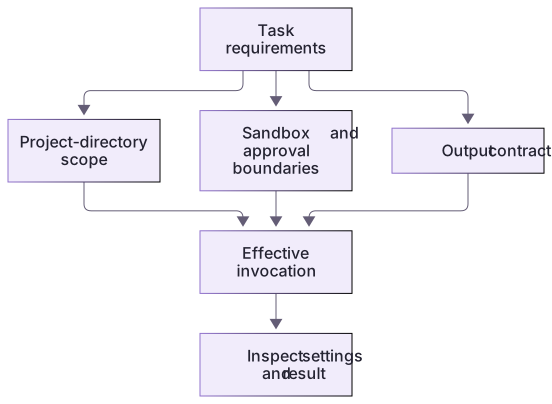
Directory options define workspace context; sandbox and approval settings define execution boundaries; output options define how results are captured. Setting one category does not establish the others.
A wrong-directory counterexample is more than a flag list
The two fixtures deliberately disagree. Compare the planned working directory with the source, then validate the red answer against the blue README to see a factual failure. This exposes correct-looking output carried from an earlier workspace into the current task.
The optional capture uses --sandbox read-only and --ask-for-approval never so a needed escalation fails rather than silently widening the run. The host process writes reports into a fresh temporary directory. These are invocation choices, not persistent Codex setting edits. Review current help and managed constraints before a real run. The global approval flag precedes exec in the supplied runner; an exec-local placement is rejected by the checked client. Its explicit repository-check exception applies only to the known read-only fixture folders.
A read-only agent is not a read-only shell
If you redirect output with your shell or use a client output-file option, that surrounding process may create a report even when the agent’s project sandbox is read-only. Name the output deliberately and do not overwrite an important source. Evaluate the whole command you are running, including redirection and pipelines, rather than checking only the sandbox flag in the middle.
About your environment
Checked 21 October 2026. Feature availability varies by client and host.
Try it step by step
- Inspect the red and blue source folders before planning a task.
- Compare both dry-run --cd arguments, read-only scope and separate output paths.
- Validate red output against blue to observe wrong-directory rejection.
- Explain host-created reports and any optional actual client run separately from persistent configuration.
A useful starting example
Illustration · adapt before use.
node labs/cli-pipeline/capture-codex.cjs --project red
node labs/cli-pipeline/capture-codex.cjs --project bluecodex --cd "./codex-lab" --sandbox read-only "Inspect README.md and report documented commands and unknowns. Do not edit files."Scope includes the wrapper and output path
This local consumer reads a known synthetic fixture. A shell redirection can create a file independently of any agent sandbox.
node labs/cli-pipeline/report.cjs labs/cli-pipeline/fixtures/success.jsonl --producer-exit 0 --jsonThe consumer emits a JSON report for the known fixture.
It refuses a missing producer exit argument.
If you redirect stdout, your shell writes the selected output file.Read-only agent intent is not a promise that the surrounding shell or client output option cannot write. Use a new deliberate report path and preserve sources.
Your turn
Generate both plans and inspect their separate --cd values. Read both README files: red documents Orbit Notes Practice and node --test checks.cjs; blue documents Harbor Docs Practice and node verify.cjs. A red answer attributed to blue fails even if its JSON shape is valid. Explain which files the host capture may write outside the agent’s read-only project sandbox.
Try the exercise before opening its reference answer. Use a disposable practice folder.
Offline CLI event pipeline
Extract into a new practice folder and keep the included labs folder. Run these commands from that extraction root, or from the course folder, using an existing Node.js installation.
- Command 1 text
node labs/cli-pipeline/capture-codex.cjs --project redCheck: run:false; resolved red source path, fixed read-only arguments and output plan. No authenticated child starts.
- Command 2 text
node labs/cli-pipeline/capture-codex.cjs --project blueCheck: run:false; a distinct blue path, project name and documented check.
Commands are relative to the course folder. Open the lab in the Codex app first. Lesson-specific artifacts separate offline execution from optional authenticated CLI observations; a dry-run plan is not a live model result.
Check your result
- The actual working directory and permissions match the intended task rather than a previous terminal location.
- No retired flag or guessed model identifier is required for the exercise.
- The final inspection accounts for the actual files changed, with global configuration and external services untouched.
Reference answer & rubric Try the exercise before opening
Set the directory, environment controls and host-side output path deliberately for each invocation.
- Inspect two dry-run --cd arguments and their actual source files.
- Check red name/command versus blue name/command.
- Validate red against blue and observe rejection.
- Account for host-written reports without changing persistent settings or claiming the client ran.
Check your understanding
Why is --cd useful in a learning exercise?
- It grants permission to publish externally.
- It disables all repository instructions.
- It makes the intended working directory explicit for that invocation.
Reveal the answer and explanation
Answer 3: It makes the intended working directory explicit for that invocation.
An explicit directory reduces environment ambiguity; it does not grant unrelated authority or replace instruction discovery.
Take this quiz in the interactive lesson to save your answer in the browser.
When it does not work
An important source file is overwritten by a report.
Likely cause: The surrounding shell redirection targeted the input or another source.
What to try: Use a new output path and restore the source from its verified copy.
The wrapper is given a guessed producer status.
Likely cause: Transport evidence was absent at capture time.
What to try: Record the actual status with the process wrapper; do not retrofit a successful assumption.
Common mistakes
- Using full access to avoid investigating a wrong directory or missing file.
- Assuming a supported flag can override an organization’s enforced security requirements.
Source mapping & differences · different
Codex flags and configuration precedence replace Claude flags. Scope is taught with explicit working-directory and sandbox settings rather than obsolete auto-mode or bypass shortcuts.
Source topic: Core flags ↗Go to the source
Official documentation, checked 21 October 2026. Product names, controls and availability may vary with your version, platform or account.
Completion and quiz progress are saved
only in the interactive course.