Static reading edition · s01-02
Use built-in commands without guessing
Find the commands supported by the current client and use them to inspect, steer and review a session.
Understand the approach
A slash command is a client control typed into the Codex composer, not a shell command and not an ordinary request. In the interactive CLI, type a slash to open the command menu and filter by name. Treat this menu and the current official command reference as the inventory. A command copied from Claude Code, another IDE or an old tutorial is not valid just because its name sounds plausible.
Start with commands that make the session observable. /status displays session settings and context information; /diff shows the working changes, including untracked files; /mcp lists configured external tools. /plan requests planning before implementation, /review examines the working tree, and /new starts a fresh chat. These controls do different jobs: reviewing a diff does not run tests, and starting a new chat does not restore files.
Desktop and IDE menus have their own command and shortcut sets. In the desktop app, the command menu is available through Ctrl+Shift+P or Ctrl+K on Windows, with corresponding Command shortcuts on macOS. Do not assume every CLI slash command appears in every composer. If a control is unavailable, use the documented interface or ask a plain-language question with a concrete output instead of inventing an alias.
A composer control and a shell command take different paths

Slash commands are handled by the Codex client. Shell commands are handled by the terminal process. A client diff helps inspect changes; a test process provides separate behavioral evidence.
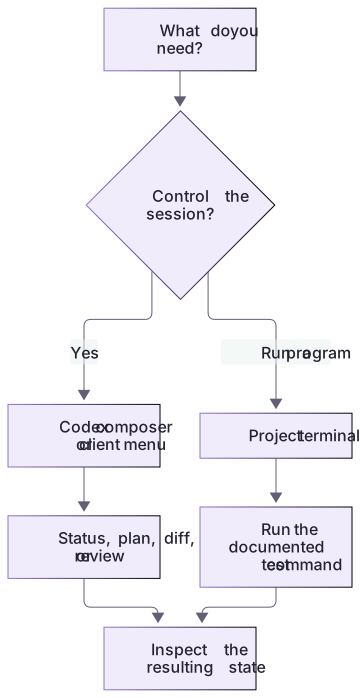
Inspect, steer and reset are different controls
Use the app review view to find the exact heading edit; in CLI, /diff is the corresponding working-change inspection. Neither establishes that any test passed. After starting a new chat, README.md still contains the edit. This observable counterexample is more useful than memorizing that /new resets something.
The linked notebook separates desktop actions, CLI composer controls and operating-system shell commands. Try each separately, record unavailable controls, and compare the actual result. An empty MCP list or absent Git history can be a valid observation.
Read the result, not just the command name
A supported command can still have context-dependent behavior. A review may require a Git repository; a tool list may be empty; account restrictions may hide controls. Record the actual result and client version when troubleshooting. Prefer a narrow diagnosis such as “the CLI menu lacks this item” over a global claim that Codex cannot perform the underlying task.
About your environment
Checked 21 October 2026. Feature availability varies by client and host.
Try it step by step
- Open the CLI slash menu or the desktop command menu and identify three inspection controls that actually appear.
- Inspect the session before making a change; record the working folder and the permissions shown by the client.
- Make one harmless edit in your scratch project, then use the available diff or review interface to inspect it.
- Ask for a short plan for a second task and confirm that planning did not silently become implementation.
A useful starting example
Illustration · adapt before use.
In this disposable copy, change only the README heading to "Heading experiment". Show me that one change in the available review view. I will start a fresh chat next; do not restore or edit any other content./status
/diff
/mcp
/plan Outline the README correction; do not edit files.Match the control to the state
Use the desktop command menu first. The following is a documented behavior comparison to verify in your installed client, not a recorded menu interaction.
Need: inspect a local change → desktop Review view
Need: find an app action → command menu
Optional CLI: /diff → inspect working changes
Optional CLI: /new → start fresh conversation contextFile recovery is not implied by opening Review or starting a new chat.
Tests still need to run separately.Compare notes.cjs before and after changing only a chat context. Its bytes remain an independent filesystem fact. Use the review surface the current client actually exposes.
Your turn
Perform the heading experiment in the linked control notebook. Inspect the changed heading, start a new chat, then read the file again. Record the actual client action and show that the fresh chat did not restore the heading. Correct only that heading afterward. Use the separate CLI controls only when learning that client.
Try the exercise before opening its reference answer. Use a disposable practice folder.
Orbit Notes project and recovery capstone
Extract into a new practice folder and keep the included labs folder. Run these commands from that extraction root, or from the course folder, using an existing Node.js installation.
- Command 1 text
node labs/project-workflow/create-workspace.cjs --gitCheck: If Git already exists, creates a fresh index-only review project. Otherwise use a plain practice copy and compare actual files directly; do not claim a Git view.
- Command 2 text
node labs/project-workflow/verify-depth.cjsCheck: Runs two candidate implementations and recovery counterexamples in fresh copies. Reports paths, facts and preservation; live skill/instruction discovery remains a separate observation.
Follow this lesson’s specific walkthrough and compare its result with the answer key. Commands are relative to the course folder. The offline demonstration never claims a live Codex client loaded instructions, selected a skill or retrieved a connected record.
Check your result
- Every command in the notebook exists in the installed client or is explicitly marked unavailable there.
- The diff reflects the harmless edit and you can identify added, removed or unchanged content.
- The planned task produces a reviewable plan without modifying the project.
Reference answer & rubric Try the exercise before opening
Keep a small control notebook with client, effect and limitation instead of memorizing a cross-product command list.
- In the app, locate the command menu and Review action actually present in the installed version.
- Record the selected practice directory and inspect its notes.cjs content.
- Use a fresh chat if useful; verify that this did not restore the file.
- Compare the actual result with the lesson-specific answer key; record unrun client observations separately from executed local checks.
Check your understanding
Which statement about /diff is accurate?
- It automatically proves the code is correct.
- It restores every modified file.
- It helps inspect changes; tests and acceptance remain separate.
Reveal the answer and explanation
Answer 3: It helps inspect changes; tests and acceptance remain separate.
A diff shows what changed. It does not prove runtime behavior or undo the working tree.
Take this quiz in the interactive lesson to save your answer in the browser.
When it does not work
PowerShell cannot find /diff.
Likely cause: A composer control was entered as a shell command.
What to try: Use the Codex composer or desktop Review view.
The expected menu item is absent.
Likely cause: Client version or surface differs from the example.
What to try: Inspect current command help and use the documented alternative; record the unavailable control.
Common mistakes
- Typing /status into PowerShell and expecting the Codex composer to handle it.
- Copying Claude-only /rewind or /memory commands and silently assuming Codex has identical behavior.
Source mapping & differences · different
Codex has its own current command inventory and desktop shortcuts. Familiar names sometimes overlap with Claude, but their availability and effects must be checked individually.
Source topic: Built-in commands reference ↗Go to the source
Official documentation, checked 21 October 2026. Product names, controls and availability may vary with your version, platform or account.
Completion and quiz progress are saved
only in the interactive course.